O.K. I thought the first thing I'd share would be something a PC user could actually see and appreciate. Sorry Mac users, this one isn't for you... So I'm going to teach you how to get a desktop like this:

Its called Rainmeter. It's a free program that allows you to greater customize your desktop to what suits you as a user. Rainmeter comes with a few simple starter skins that provide a good place to start learning how to use and modify Rainmeter. You can go to this link http://rainmeter.net/cms/ to download the Rainmeter program used to install different skins.
Here are some links to get cool skins from like the one above:
Sweet HD backgrounds can be found and downloaded/synced to drop box at:
(Make sure that you choose to filter the SAFE ONLY)
Here is a little video demonstration of the whole process.
(Minus downloading the Rainmeter program, I already have that)
Installing Automatically
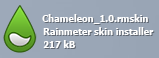
Skins in the Rainmeter Skin Packager (.rmskin) format can be easily and automatically installed with the Rainmeter Skin Installer. During a normal Rainmeter installation, the .rmskin extension is associated in Windows with the Skin Installer program, and simply double-clicking the file will install it in Rainmeter.
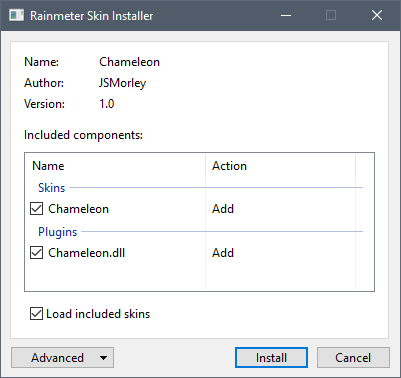
This dialog lists each component that will be installed. These may include:
- Skins : At least one skin will always be included and installed in the Rainmeter\Skins folder. The author of the package may indicate that one or more skins will automatically be loaded when the installation is complete.
- Layouts : If the author has added a layout to the package it will be installed in the Rainmeter\Layouts folder. IfApply included layout is selected, the layout will be applied to Rainmeter following installation.
- Plugins : If the author has added custom plugins to the package the appropriate 32bit/64bit architecture version of the plugin .dll files will be installed to the Rainmeter\Plugins folder.
Legacy .rmskin format components. No longer supported in new Rainmeter 2.4 .rmskin files:
- Fonts : If an author has included font files with the package, they will be installed in the Windows\Fonts folder. This may be disabled by unchecking Install fonts to system in the Advanced pull-down menu.
- Addons : If an author has included addon executable files with the package, they will be installed in the Rainmeter\Addons folder.
If any of the skins to be installed already exist, they will be moved to a Backup folder before installation. This may be disabled by unchecking Backup skins in the Advanced pull-down menu.
Click Install to complete the installation of the package.
______________
Note: If Rainmeter is being run as a portable installation, start SkinInstaller.exe from the Rainmeter program folder, and browse to the .rmskin file to install it.
Note: If Rainmeter is being run as a portable installation, start SkinInstaller.exe from the Rainmeter program folder, and browse to the .rmskin file to install it.
Installing Manually
Before Rainmeter 1.3, most skins had to be unzipped and moved to the Skins folder by hand. All versions of Rainmeter are 100% backwards-compatible, so these older skins will still work just fine. Here is how to install them:
First of all, if a skin comes in an archive, such as a ZIP, RAR or 7Z file, software is needed to "extract" them. 7-Zipis one of the popular choices, since it can handle almost any archive type. After installing the software, right-click the archive in Explorer to extract it.
The archive may include a readme.txt file with further instructions. If not, look for a folder with the same name as the skin - it might be inside another folder that is actually called "Skins". Move the folder to the Rainmeter "Skins" folder:
Windows 8/7/Vista: C:\Users\YourName\Documents\Rainmeter\Skins 1
Windows XP: C:\Documents and Settings\YourName\My Documents\Rainmeter\Skins 1
Windows XP: C:\Documents and Settings\YourName\My Documents\Rainmeter\Skins 1
1. "YourName" is an example.
Finally, right-click the Rainmeter Windows Notification area icon and select Refresh all. The new skins will now be available to load from the Manage window or context menus.
Information courtesy of: http://docs.rainmeter.net/manual/installing-skins
Next Time on S3cr3t PC:
We'll take a look at a special website that allows you to automatically sync wallpapers with dropbox to have access to them anywhere. Cool eh?
